Explore Any Video Converter Professional 6.2.0, its features, subtitle improvements, workflow, compatibility, performance, and uses.
Video conversion remains an important part of managing digital media, especially when videos need to work across different devices, players, editing applications, or storage platforms. Formats, codecs, resolutions, audio tracks, and subtitle standards can vary considerably, making a dedicated converter useful for users who regularly work with multimedia files.
Any Video Converter Professional 6.2.0 is a version of the Any Video Converter software released in 2017. Version 6.2.0 was published on October 31, 2017, and its documented update focused particularly on external subtitle handling. The release fixed bugs associated with adding external subtitles and changed the lowest available subtitle-position value from 0 to -20.
Although newer versions of the software now provide substantially expanded capabilities, version 6.2.0 remains relevant when discussing older Windows-based video-conversion workflows and legacy software compatibility.
What Is Any Video Converter Professional 6.2.0?
Any Video Converter Professional 6.2.0 is a desktop multimedia conversion application designed to convert video and audio files between different formats. The software was built around a relatively straightforward workflow: import media, select an output profile or configure conversion parameters, adjust optional settings, and begin processing.
The Professional edition was intended for users who wanted more than a basic file conversion utility. Its feature set included support for batch conversion, customizable audio and video settings, format conversion for portable devices, and video preview capabilities.
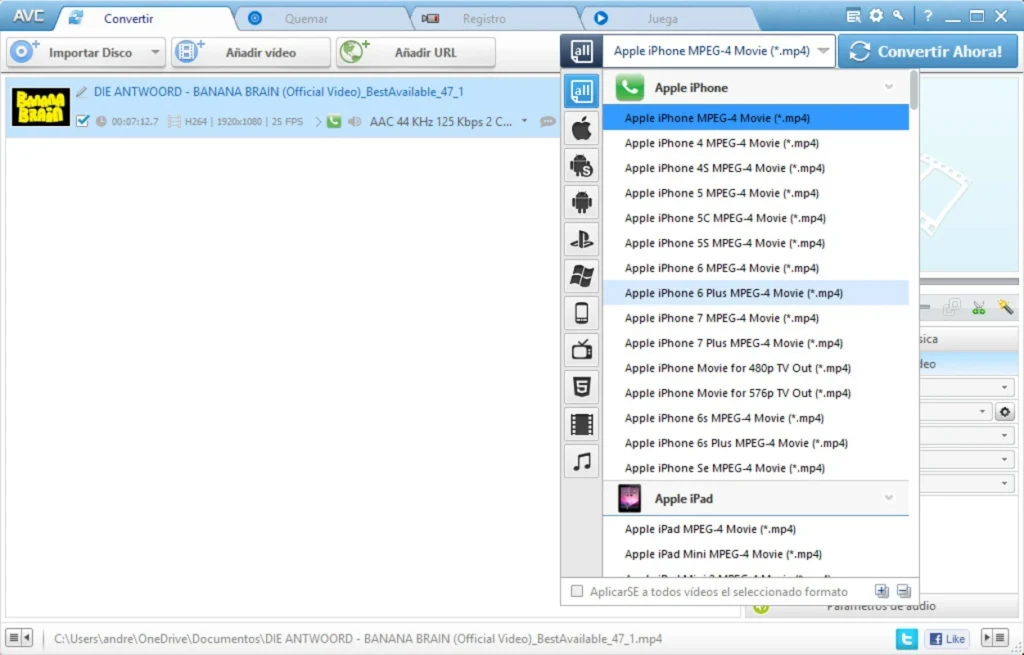
The software supported common formats such as AVI, WMV, ASF, MPG, and MP4, while also supporting DivX and Xvid AVI files for importing and exporting. Contemporary descriptions of the software also emphasized customizable video and audio parameters, allowing users to select predefined settings or adjust them manually.
This combination made the application useful for both casual users and people who regularly needed to prepare multiple media files for different playback environments.
Key Features of Any Video Converter Professional 6.2.0
Support for Multiple Video Formats
One of the primary purposes of Any Video Converter Professional 6.2.0 was format conversion. Different devices and applications often required specific formats, so the ability to transform a source file into another format was central to the program.
Users could work with widely used formats such as MP4, AVI, WMV, MPG, and ASF. Support for DivX and Xvid AVI files also provided compatibility with video collections created using older encoding standards.
This was particularly useful for users maintaining older video libraries, transferring files between computers, or preparing media for devices with limited format support.
Batch Video Conversion
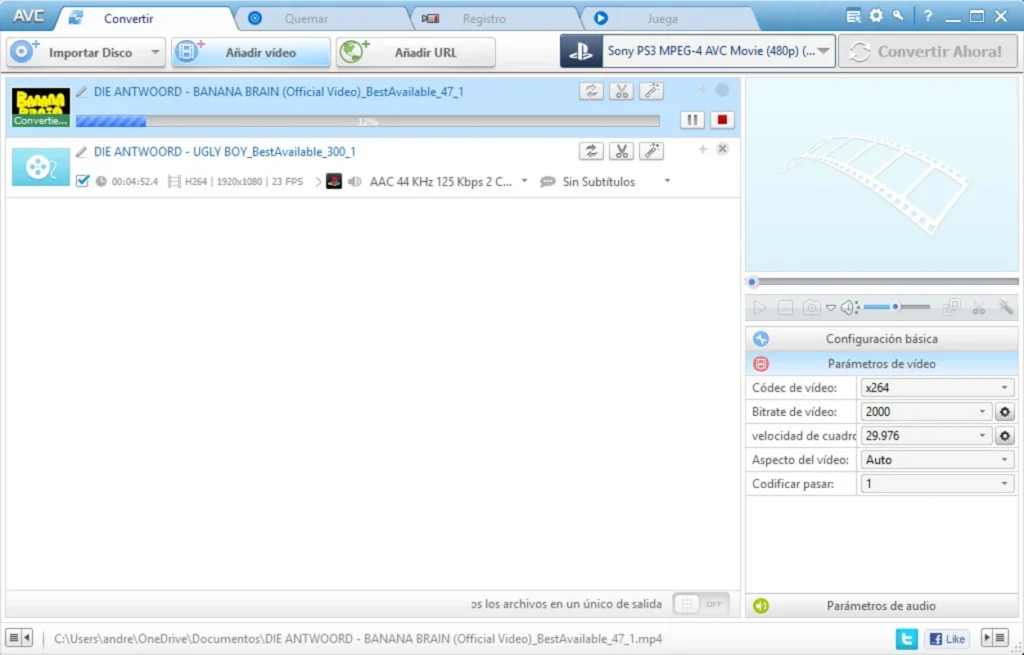
Batch conversion was another practical feature. Instead of processing every video individually, users could add multiple files and process them as a group.
This is valuable when dealing with large collections. For example, someone converting a folder of older AVI recordings to MP4 could configure an output profile and process the files together rather than repeating the same steps for every video.
Batch processing can also make repetitive media-management tasks more organized because the same general conversion configuration can be applied to several files.
Custom Audio and Video Settings
Another important aspect of the Professional edition was its ability to provide both predefined settings and customizable parameters.
Beginners could rely on existing profiles rather than learning every technical detail about codecs and encoding. More experienced users could modify parameters according to their requirements.
Depending on the selected format, conversion settings could include factors such as resolution, bitrate, frame rate, and audio characteristics. Contemporary descriptions specifically noted the ability to adjust video and audio options for MP4 output, including sample rate, bitrate, and video size.
This flexibility allowed users to balance file size, compatibility, and visual quality according to the intended use.
Subtitle Improvements in Version 6.2.0
Better External Subtitle Handling
The most clearly documented change in Any Video Converter Professional 6.2.0 concerned external subtitles.
The version history states that the release fixed bugs that occurred when users added external subtitles to videos. It also changed the minimum subtitle-position value from 0 to -20.
This may appear to be a small update, but subtitle positioning can have a noticeable effect on the final video. Captions positioned too close to the edge of the picture can become difficult to read or may interfere with other on-screen elements.
By allowing a wider positioning range, version 6.2.0 gave users additional control over subtitle placement.
Why Subtitle Support Matters
Subtitle functionality is important for more than accessibility. Subtitles can also be useful when translating videos, creating educational content, preserving dialogue in noisy environments, or preparing media for audiences who speak different languages.
External subtitle files also allow users to keep captions separate from the original video until the conversion stage. This can make the workflow more flexible because the same video can potentially be processed with different subtitle files.
Video Preview Before Conversion
Any Video Converter also included a preview option that allowed users to view video content before completing the conversion process.
A preview feature can help users verify that they have selected the correct source file and assess whether settings or edits are producing the expected result.
For conversion tasks involving subtitles, cropping, resolution changes, or other adjustments, checking the output before committing to a lengthy conversion can help reduce unnecessary processing.
A Practical Conversion Workflow
Step 1: Add the Source Video
The first stage is to import the video into the application. Users working with several files can take advantage of batch processing by adding multiple sources at once.
Organizing the source files before beginning can make larger conversion projects easier to manage.
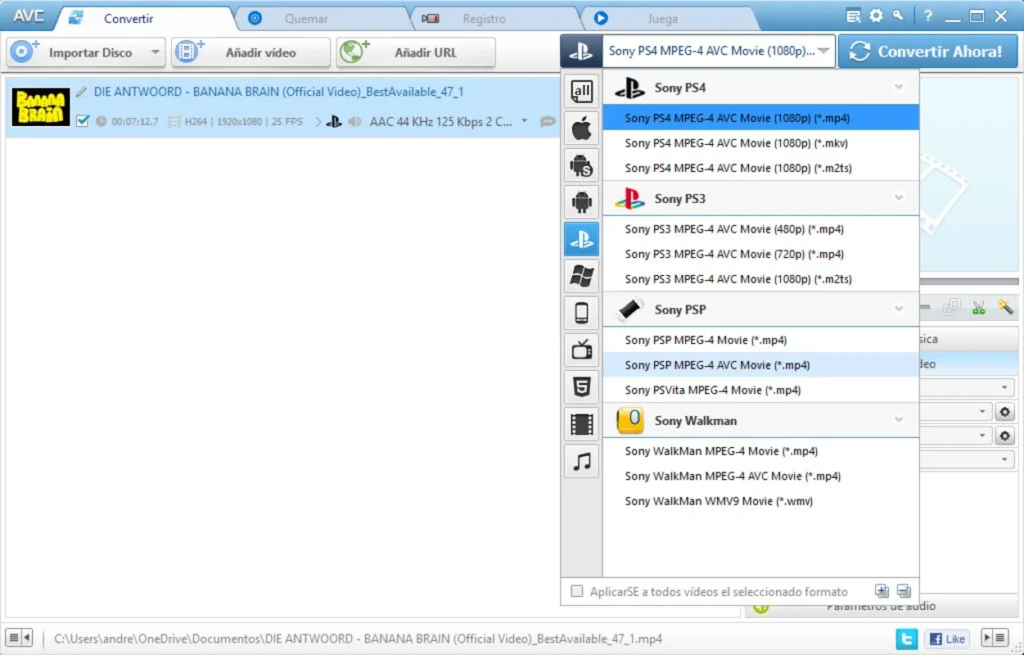
Step 2: Select the Output Format
The next step is selecting the desired output format. MP4 is often useful when broad compatibility is required, while other formats may be appropriate for specific legacy devices or applications.
The appropriate format depends on where the converted file will be played or edited.
Step 3: Configure Video and Audio Settings
Users can then choose an existing profile or adjust available parameters manually.
For straightforward conversions, predefined settings can reduce complexity. Advanced users may want to change resolution, bitrate, frame rate, or audio settings to achieve a particular balance between quality and file size.
Step 4: Configure Subtitles
If subtitles are required, an external subtitle file can be added during the workflow. Version 6.2.0 specifically addressed problems associated with adding external subtitles, making this area one of the notable improvements in the release.
Subtitle placement can also be adjusted, including the expanded positioning range introduced in this version.
Step 5: Preview and Convert
Before starting the final conversion, users can preview the video where appropriate and verify their settings.
Once everything is configured, the conversion can be started. Batch conversion makes this process particularly convenient when multiple files require similar treatment.
Performance and File Quality
Video conversion always involves a trade-off between processing time, file size, compatibility, and quality.
A higher bitrate generally requires more storage space but can preserve more visual detail. Reducing resolution or bitrate can create smaller files, which may be useful when storage capacity or transfer speed is limited.
The best settings therefore depend on the purpose of the converted video.
For example, a video intended for archival storage may benefit from settings that preserve more detail, while a file intended for quick sharing may prioritize a smaller size.
Any Video Converter Professional 6.2.0 provided users with configurable audio and video parameters, giving them more control than a conversion utility based exclusively on fixed presets.
Who Can Benefit From Version 6.2.0?
Users With Older Video Collections
People maintaining older AVI, WMV, MPG, DivX, or Xvid files may find the software conceptually suited to legacy conversion tasks.
Older media collections often contain files encoded using standards that are less convenient on modern devices. Converting them into a more widely supported format can make playback and organization easier.
Users Managing Multiple Files
Batch conversion can be useful for people who have many videos requiring the same output configuration.
This includes home-video collections, educational recordings, downloaded media, and other personal video libraries.
Users Working With External Subtitles
The subtitle-related improvements make version 6.2.0 particularly notable for workflows involving external caption files.
Users who regularly combine video with subtitles may appreciate having positioning controls and dedicated subtitle handling within the conversion process.
Limitations to Consider
Any Video Converter Professional 6.2.0 is an older software release. Its age is important when considering compatibility with modern operating systems, codecs, devices, and online video services.
The capabilities documented for modern versions of Any Video Converter have expanded significantly. The current product, for example, offers features such as 4K and 8K conversion, extensive format support, screen recording, DVD tools, video compression, editing functions, subtitle management, and newer AI-powered features.
Those modern capabilities should not be assumed to exist in version 6.2.0.
Users specifically interested in version 6.2.0 should therefore distinguish between the feature set of the 2017 release and capabilities advertised for current versions of the software.
Any Video Converter Professional 6.2.0 vs. Modern Video Converters
The main difference between an older converter such as version 6.2.0 and contemporary multimedia applications is the breadth of the overall workflow.
The 6.2.0 generation focused strongly on conversion, device compatibility, configurable encoding, batch processing, previewing, and subtitle handling.
Modern Any Video Converter editions have developed into broader media-management suites. Current product information describes tools for compression, trimming, merging, screen recording, DVD burning, subtitle processing, and video editing, alongside newer AI-based functionality.
For users researching legacy software, version 6.2.0 is therefore best understood in its historical context rather than compared directly with the capabilities of current releases.
Any Video Converter Professional 6.2.0 represents a feature-focused generation of desktop video-conversion software. Its emphasis on multiple formats, batch processing, customizable audio and video settings, preview functionality, and external subtitle support made it suitable for a range of everyday conversion tasks.
The October 2017 update was relatively focused, with documented fixes for external subtitle problems and an expanded subtitle-position range from 0 down to -20.
For anyone researching older video-conversion software, the release remains an interesting example of how desktop multimedia tools addressed format compatibility and subtitle management before the much broader feature sets found in today’s applications.
Its greatest significance is its practical approach: import media, select a target format, customize the important parameters, handle subtitles when necessary, preview the result, and convert the files. For users dealing with legacy media, that straightforward workflow can still be useful when the software and operating environment are compatible.
Download Any Video Converter Professional 6.2.0+ Key