
Explore Any Video Converter PC software, its features, supported formats, benefits, workflow, performance, and uses.
Video files come in many formats, resolutions, codecs, and sizes, which can make playback, editing, sharing, and storage surprisingly complicated. A video that works perfectly on one device may not open correctly on another, while a large 4K recording can consume significant storage space. This is where video conversion software becomes useful.
Any Video Converter PC software is designed to handle a broad range of video and audio tasks from a Windows computer. It combines video conversion with features for compression, editing, downloading, recording, audio extraction, and other media-processing workflows. The current Windows version supports Windows 10 and Windows 11 on 64-bit systems.
Rather than relying entirely on separate applications for different media tasks, users can use Any Video Converter as a central desktop solution. It supports common formats such as MP4, MOV, MKV, AVI, WMV, WebM, MP3, WAV, FLAC, and many others, making it useful for everyday media management.
What Is Any Video Converter PC Software?
Any Video Converter is desktop multimedia software developed for converting, editing, compressing, downloading, and processing video and audio files. The software has evolved beyond traditional format conversion and now includes additional tools such as AI-based video enhancement, transcription, creative generation, screen recording, and local media processing.
Its primary purpose remains straightforward: take a media file in one format and produce a compatible version in another format. For example, a user can convert an MKV video into MP4, extract audio from a video as MP3, or prepare a high-resolution file for easier playback or sharing.
The desktop approach also provides an important advantage for large files. Instead of uploading a multi-gigabyte video to an online converter, users can process files directly on their Windows PC. The free Windows version is advertised as having no file-size limits and no watermark on converted output.
Why Use Any Video Converter on a PC?
Desktop video conversion can be more practical than browser-based tools when working with large files, multiple videos, or advanced encoding settings.
Local Video Processing
Because the software operates on the computer, users can process large local files without first uploading them to a web service. This can be especially useful for long recordings, 4K footage, downloaded media, and personal video collections.
Local processing also reduces dependence on an internet connection for basic conversion tasks. Once the software is installed, a user can work with files stored on the computer without transferring them to an online conversion platform.
Support for Multiple Formats
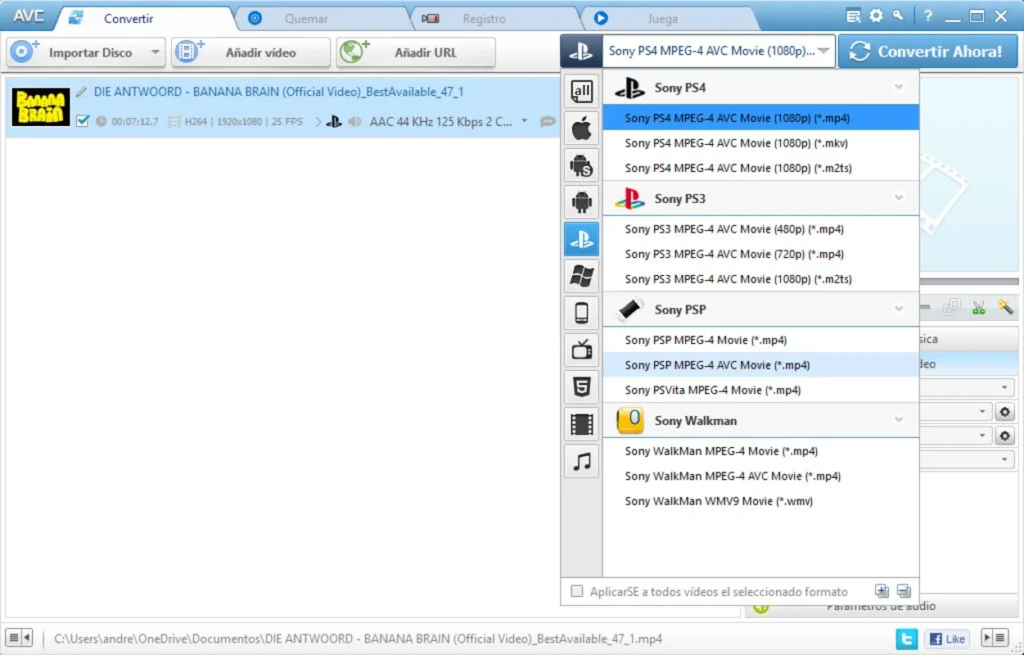
One of the main attractions of Any Video Converter is its extensive format compatibility. The software supports numerous video and audio formats, including popular options such as MP4, MOV, MKV, AVI, WebM, MPEG, MP3, AAC, WAV, and FLAC. Its official documentation describes support for more than 1,000 video and audio formats.
This broad compatibility can reduce the need to install different converters for different file types.
Batch Conversion
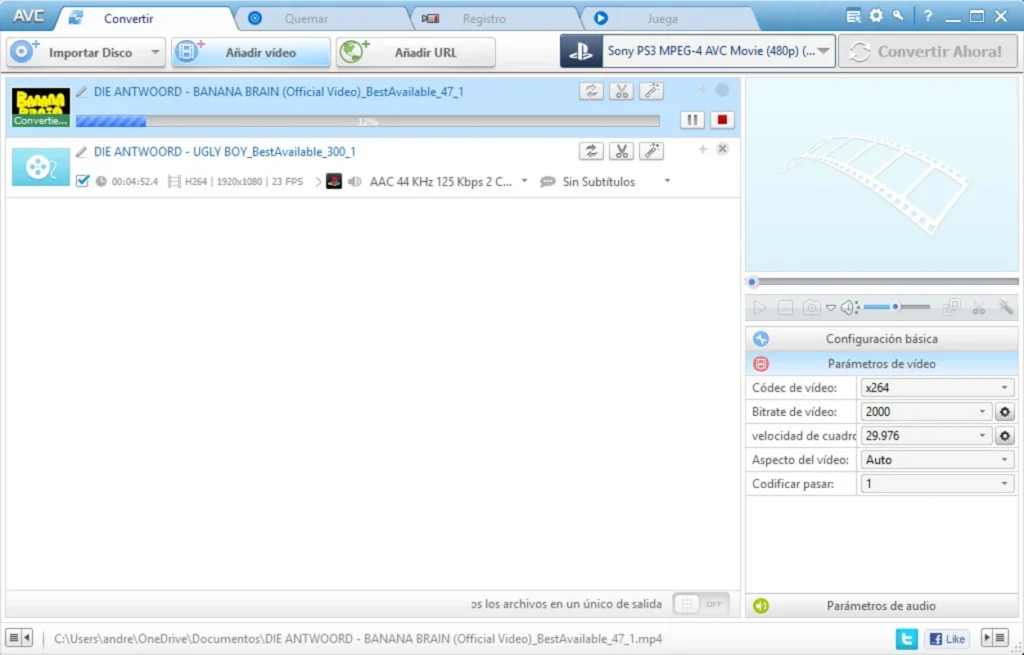
Batch conversion is another useful feature for PC users. Instead of converting each file individually, users can add multiple files to a conversion queue and process them together.
This is particularly convenient for photographers, content creators, students, teachers, and anyone managing a large media library.
Key Features of Any Video Converter
Any Video Converter has developed into a broader media-processing application rather than simply a format converter.
Video and Audio Conversion
The core feature is format conversion. Users can select an input file, choose an output format, adjust available settings, and begin the conversion process.
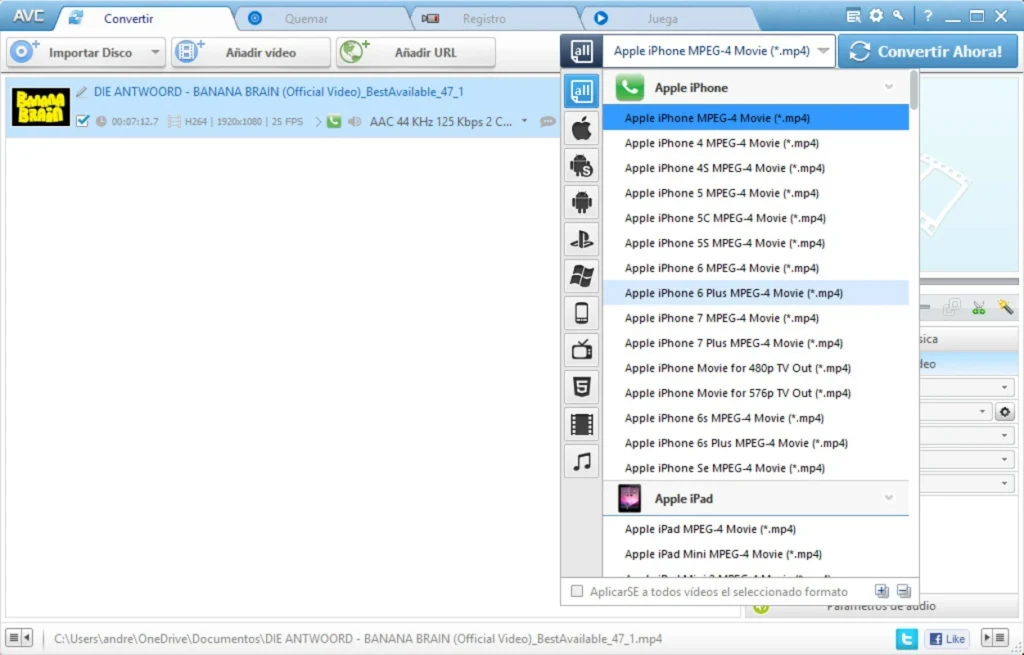
Common conversions include MKV to MP4, MOV to MP4, AVI to MP4, video to MP3, and other video-to-audio workflows. The software also provides device and format-oriented profiles intended to simplify the process for users who do not want to manually configure every encoding parameter.
Custom Video Settings
More experienced users can control technical properties of the output file. Depending on the selected format, settings can include resolution, video codec, frame rate, bitrate, audio codec, sampling rate, channels, aspect ratio, and other encoding parameters.
Recent versions have added more advanced controls, including options related to deinterlacing, scaling, bitrate modes, encoding passes, frame-rate modes, color space, denoise, deblock, and sharpening.
These options allow users to balance file size, image quality, compatibility, and encoding performance.
Video Compression
Large videos can be inconvenient to store, upload, email, or share. Any Video Converter includes video compression functionality designed to reduce file size while maintaining practical playback quality.
Compression can be useful for social media uploads, online sharing, archiving, presentations, and reducing the amount of storage consumed by large recordings.
The best compression settings depend on the source material. A very high bitrate source can often be reduced significantly, while already-compressed footage may require more careful settings to avoid visible quality loss.
Video Trimming and Merging
The desktop software also provides basic video editing capabilities. Users can trim unwanted portions from a video and combine multiple clips into a single file.
These tools are useful when preparing recordings, tutorials, presentations, social media clips, or simple compilations without requiring a full professional video-editing application.
Subtitle and Watermark Tools
Subtitle functionality can help users add captions to video projects, while watermark tools can be used for branding, ownership identification, or draft labeling.
These features are particularly useful for creators who need basic preparation tools before publishing or distributing video content.
Video Downloader and Recording Features
Beyond local conversion, Any Video Converter also includes tools for downloading and recording media.
Video Downloading
The software provides video downloading functionality for supported websites and services. Its current product information describes support for downloading media from more than 1,000 sites, with options involving different resolutions and formats depending on the source and product edition.
Users should always consider the copyright and terms-of-service requirements associated with the content they download. Downloading capabilities do not automatically grant permission to copy or redistribute copyrighted material.
Screen Recording
Screen recording is another feature available in the broader Any Video Converter product range. It can be useful for creating tutorials, recording demonstrations, documenting software procedures, or capturing other activity taking place on a computer screen.
AI Features in Any Video Converter
Recent versions have expanded the software into AI-assisted media processing and creation.
AI Video Enhancement
AI enhancement tools can be used to improve certain types of low-resolution, noisy, blurry, or older footage. The software’s current feature set includes AI video enhancement and upscaling workflows for higher-resolution output.
However, users should understand that upscaling does not magically recreate information that was never captured by the original camera. Results depend heavily on source quality, motion, compression, lighting, and other characteristics of the footage.
Speech-to-Text
The software also includes AI-assisted transcription capabilities. Video or audio recordings can be converted into text, which may be useful for interviews, lectures, meetings, tutorials, podcasts, and content repurposing.
AI Creative Tools
Current versions also incorporate generative AI features for creating images and videos from prompts or existing visual material. These tools expand Any Video Converter beyond traditional media conversion and into creative content production.
How to Convert a Video with Any Video Converter
The basic conversion workflow is designed to be relatively straightforward.
Step 1: Add the Video
Open Any Video Converter on your Windows PC and import the video you want to process. Multiple files can be added when performing batch conversion.
Step 2: Select the Output Format
Choose the desired output format. MP4 is often a practical choice when broad compatibility is important, while other formats may be preferable for specific editing, archival, or playback requirements.
Step 3: Adjust the Settings
Users who need more control can configure resolution, codec, bitrate, frame rate, audio settings, and other available parameters. Beginners can generally use an existing profile or preset instead of manually adjusting every option.
Step 4: Start Conversion
After selecting the output location and settings, start the conversion process. The resulting files can then be accessed from the selected destination folder.
The software’s current conversion tools also support hardware acceleration and report substantially faster processing under suitable conditions. Actual performance depends on the computer’s CPU, GPU, source video, output settings, codec, and whether the task involves re-encoding.
Any Video Converter Free vs Paid Editions
Any Video Converter is available in different editions, including a free version and paid versions designed for users who need additional capabilities.
Free Version
The free Windows edition provides core conversion functionality, supports common video and audio formats, offers batch conversion, and is designed for local processing. The official product information states that it does not add a watermark and does not impose a file-size limit for local conversion.
For basic format conversion and everyday media processing, these features may be sufficient.
Pro and Ultimate Editions
Paid editions add additional functionality depending on the specific product and license. Features can include advanced downloading, more sophisticated conversion controls, AI capabilities, screen recording, DVD-related functions, and additional creative tools.
The choice between editions therefore depends on the user’s workflow rather than simply the number of supported formats.
Performance and Hardware Acceleration
Video conversion can be computationally demanding, particularly when converting high-resolution footage or using modern codecs.
Any Video Converter supports hardware acceleration for compatible systems. This can reduce conversion time by allowing supported processing tasks to use available GPU resources. The software documentation reports speeds of up to 130 times faster in certain accelerated workflows, but this should not be interpreted as a guaranteed speed for every computer or file.
For the best results, users should consider their processor, graphics hardware, available memory, storage speed, video resolution, codec, and selected output settings.
Who Should Use Any Video Converter?
Any Video Converter can be useful for several categories of PC users.
Everyday Users
People who simply need to convert incompatible videos into MP4 or extract audio from videos can use the basic conversion workflow without learning advanced encoding concepts.
Content Creators
Creators can benefit from batch conversion, compression, trimming, merging, subtitle tools, screen recording, and AI-assisted features when preparing content.
Students and Educators
Students and teachers may find video conversion useful when preparing recordings for presentations, coursework, classroom playback, or different devices.
Media Enthusiasts
Users with large collections of movies, personal recordings, music videos, or archived footage can use desktop conversion and compression tools to organize media in compatible formats.
Tips for Getting Better Conversion Results
Choosing the correct settings is important for maintaining quality.
First, avoid increasing resolution unnecessarily. Converting a standard-definition video to 4K does not automatically produce genuine 4K detail.
Second, consider the codec used by the destination device. MP4 with a widely supported codec can be a convenient option when compatibility is more important than specialized encoding.
Third, avoid repeatedly converting the same file between lossy formats. Each lossy encoding cycle can introduce additional quality degradation.
Finally, preview important output files before deleting the original. This is particularly important when performing batch conversion or applying aggressive compression.
Is Any Video Converter Worth Using?
Any Video Converter PC software provides a broad collection of tools for users who regularly work with video and audio files. Its strongest practical advantage is the combination of format conversion, batch processing, compression, basic editing, local file handling, and increasingly sophisticated AI features in one desktop environment.
The free edition can address many everyday conversion requirements, while the paid editions extend the software toward more advanced downloading, editing, AI, and media-production workflows. The current Windows release supports Windows 10 and Windows 11 64-bit systems, while recent updates continue to add conversion controls, download improvements, editing features, and AI capabilities.
For users who frequently encounter incompatible video formats, oversized recordings, audio extraction requirements, or multiple files that need processing, having a dedicated PC converter can simplify the workflow considerably.
Download Any Video Converter Professional 6.2.0 + Keys
You May Also Like: Format Factory