Rufus 4.14 x86 and x64: Everything You Need to Know About the Most Powerful Bootable USB Tool Yet
Rufus has long been the go-to utility for anyone who needs to create bootable USB drives quickly, cleanly, and with full control. Released as a stable final build on April 30, 2026, Rufus 4.14 is arguably the most significant update the tool has received in years. Available in multiple builds — including the standard x64 version, the x86 32-bit edition, a portable variant, and an ARM64 release — this version dramatically expands what a free USB creation tool can do. From silent Windows 11 deployments to one-click bloatware removal, Rufus 4.14 pushes the boundary between “simple boot media creator” and full deployment orchestrator.
What Is Rufus and Why Does It Matter
Rufus — short for the Reliable USB Formatting Utility with Source — was first released in December 2011 by developer Pete Batard. Written in C and licensed under the GNU GPL 3+, it has remained a lean, open-source tool that runs on Windows 8 and later operating systems. Its entire download footprint sits at roughly 1.9 MB for the standard x64 build, making it one of the most resource-efficient utilities in any technician’s toolkit.
The tool supports 38 languages and works across a wide range of hardware architectures. While the x64 (64-bit) build is the default for modern systems, the x86 build remains essential for users operating on legacy 32-bit hardware or older enterprise machines that still run 32-bit Windows environments. The x86 version weighs in at the same 1.9 MB, maintaining Rufus’s hallmark efficiency even on constrained hardware.
Over time, Rufus grew beyond simple formatting. It became the community’s unofficial answer to Microsoft’s increasingly complex, account-heavy, app-bloated Windows setup experience. Version 4.14 accelerates that evolution significantly.
Available Builds: x86, x64, Portable, and ARM64
Standard x64 Build (rufus-4.14.exe)
The default installer is compiled for 64-bit Windows systems and represents the recommended version for the vast majority of users. It takes full advantage of modern CPU capabilities, handles large ISOs efficiently, and supports all the new features introduced in this release.
x86 32-bit Build (rufus-4.14_x86.exe)
The x86 build provides backward compatibility for users running 32-bit Windows operating systems or working on legacy hardware. It supports the same core functionality as the x64 build, including USB formatting, partition scheme selection, file system options, and the Windows User Experience (WUE) dialog. While 32-bit environments are increasingly rare, Rufus’s continued support for x86 reflects the project’s commitment to not leaving older systems behind. This is particularly relevant in regions and industries where older hardware is still actively used.
Portable Version (rufus-4.14p.exe)
The portable edition requires no installation and can be run directly from a USB drive or any folder. It writes no registry entries and leaves no footprint on the host system. For IT professionals who carry a toolkit on a drive, the portable version is the practical choice — it can be used across different machines without setup friction.
ARM64 Build (rufus-4.14_arm64.exe)
The ARM64 edition, at 5.1 MB, is significantly larger due to the different compilation requirements for ARM-based processors. It targets machines running Windows on ARM, such as Snapdragon-powered laptops and Microsoft’s Surface Pro X line. This build has grown in relevance as ARM-based Windows hardware becomes more mainstream.
Core Features of Rufus 4.14
Bootable USB Drive Creation
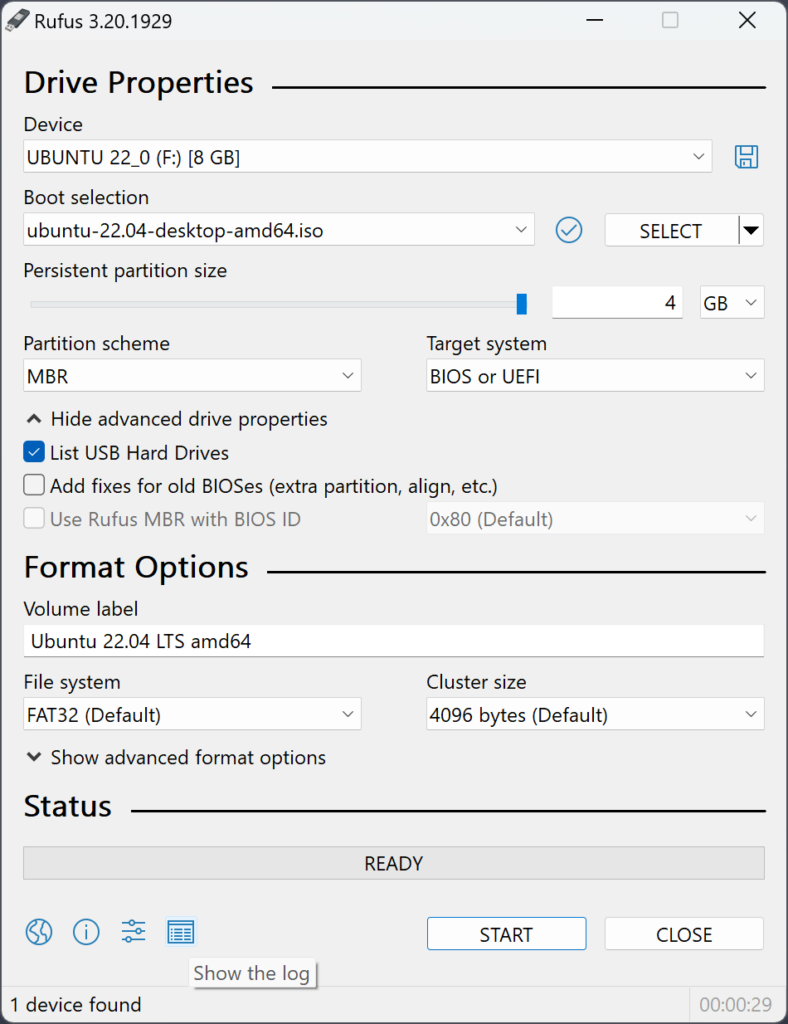
At its foundation, Rufus formats and creates bootable USB flash drives from ISO images. It supports booting from USB for Windows (all versions from XP onward), Linux distributions, FreeDOS, and UEFI-native environments. The process is straightforward: select a device, choose an ISO, configure partition and file system options, and click Start. For most users, this remains the primary reason to use Rufus, and version 4.14 makes no regressions in this area.
Partition Scheme and File System Support
Rufus supports MBR (Master Boot Record) and GPT (GUID Partition Table) partition schemes, giving users control over whether the resulting drive boots via legacy BIOS or modern UEFI. File system options include FAT32, NTFS, UDF, exFAT, and ReFS. The tool automatically recommends the appropriate combination based on the selected ISO and target hardware, though advanced users can override these defaults manually.
UEFI:NTFS Support and Secure Boot Handling
One of the more technical but critical capabilities in Rufus is its UEFI:NTFS implementation, which allows NTFS-formatted drives to be booted on UEFI systems that do not natively support NTFS. Version 4.14 improves the labeling and handling of UEFI:NTFS partitions, making the resulting drives clearer and less likely to confuse Windows Setup during installation. Rufus 4.14 also adds an option to copy SkuSiPolicy.p7b to the EFI System Partition (ESP) during creation, which is relevant for users following Microsoft’s guidance around Secure Boot policies, particularly described in KB5042562. This helps ensure that installations on modern UEFI hardware proceed without Secure Boot-related failures.
New Windows User Experience Features
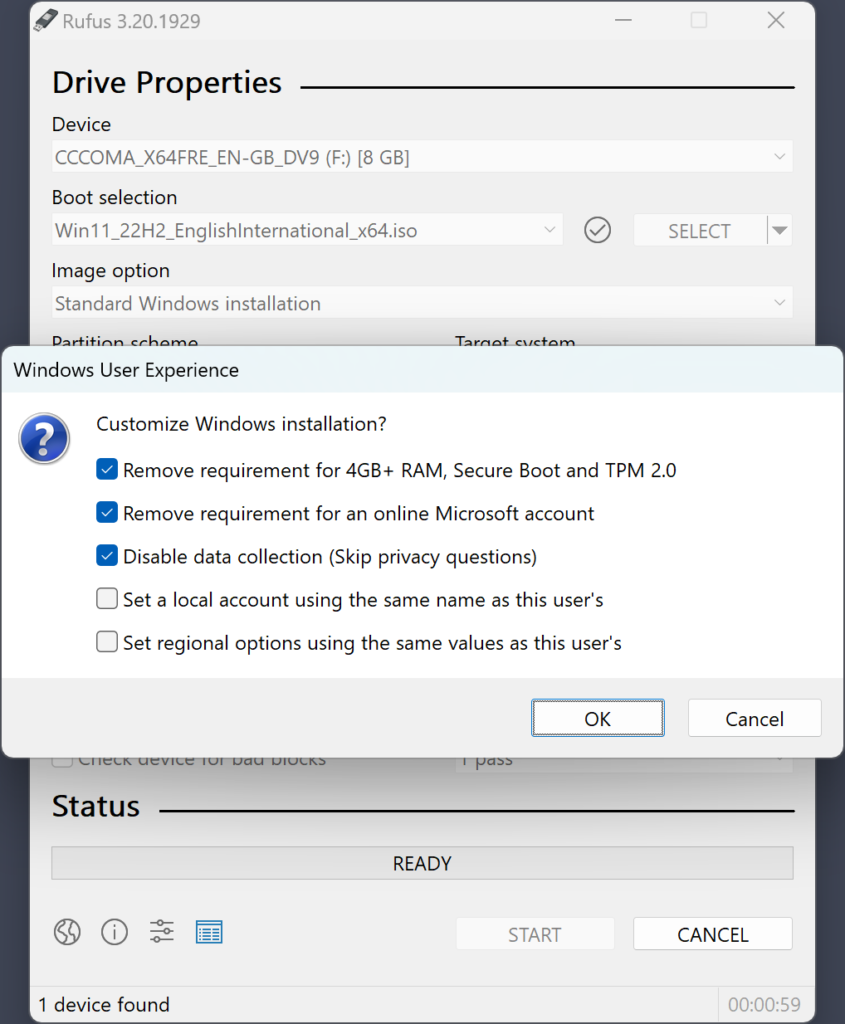
The Windows User Experience (WUE) dialog has been a key part of Rufus since it began offering bypasses for Windows 11’s hardware requirements. Version 4.14 adds three new options to this section, making it the most powerful iteration of this feature to date.
Quality of Life (QoL) Option
The most talked-about addition in Rufus 4.14 is the Quality of Life checkbox. When enabled, Rufus configures the installation media to disable or remove Microsoft Teams, the new Outlook app, Microsoft Copilot, OneDrive, fast startup, and other pre-installed Microsoft software that runs in the background and consumes system resources without the user’s active consent. The removal is handled through the answer file at install time, meaning the unwanted applications are never placed on the system during setup in the first place. This is fundamentally different from post-install removal scripts, which often leave residual entries, scheduled tasks, or re-installation triggers behind. The feature is particularly beneficial for users running Windows 11 on lower-end hardware, where background processes tied to these apps can noticeably impact performance. It is worth noting that while the integrated Windows Copilot is removed by the QoL option, the separate Microsoft 365 Copilot application that ships with newer Windows 11 builds is not currently affected; that is expected to be addressed in a future Rufus release.
Silent Installation Mode
The second headline feature in 4.14 is silent installation. When activated, Rufus generates an unattend.xml answer file that instructs the Windows installer to run in fully automated mode on the target machine. The resulting USB drive detects the first available disk on the destination system and installs Windows 11 without displaying a single prompt. No region selection, no account sign-in screen, no license agreement click-through — the entire process proceeds hands-free from start to end.
This feature is aimed at power users and IT professionals who need to deploy Windows across multiple machines quickly. Historically, producing an unattended installation required manually authoring XML answer files or relying on enterprise deployment tools like MDT or SCCM. Rufus 4.14 abstracts that complexity entirely, placing the capability inside a consumer-facing interface that anyone can navigate. Silent installation is disabled by default and requires a local account name and certain other WUE options to be configured before it can be activated, ensuring that users must consciously prepare their settings before the tool generates a fully automated installer. The option carries an important warning: without prompts on the target machine, it will overwrite the first detected disk without confirmation, making correct preparation essential.
SkuSiPolicy.p7b Option
The third new WUE addition is the option to copy SkuSiPolicy.p7b to the ESP partition during USB creation. This policy file governs Secure Boot behavior on Windows 11 installations and is particularly relevant for users who need to manage hardware compatibility in UEFI environments. Enterprise users deploying Windows 11 on hardware that requires specific Secure Boot configurations will find this option useful for ensuring that their created media works without BIOS modification.
Existing Windows User Experience Options
Beyond the new additions, Rufus 4.14 retains the full set of WUE options that users have relied on since Windows 11’s strict hardware requirements were introduced:
Bypass Hardware Requirements allows users to skip the TPM 2.0 and Secure Boot checks that Windows 11 enforces during standard installation, enabling installation on older or non-compliant hardware.
Remove Microsoft Account Requirement configures the setup to allow a local account to be created during initial Windows setup without requiring a Microsoft account sign-in. It is worth noting that if the target machine has an active internet connection during the out-of-box experience, modern Windows 11 builds may still attempt to redirect to a Microsoft account login; disconnecting from the network during initial setup remains the most reliable way to ensure local account creation proceeds uninterrupted.
Disable BitLocker Automatic Encryption prevents Windows 11 from automatically enabling BitLocker on the system drive, which is a default behavior on many Windows 11 installations that can cause complications for users who are not prepared to manage recovery keys.
General Usability and Interface Improvements
Tooltips for All Dialog Options
Every option in the Windows User Experience dialog now includes a tooltip, accessible by hovering over the option label. This is a meaningful quality-of-life improvement for users who encounter the dialog for the first time and want to understand what each checkbox does before enabling it, reducing the chance of accidental misconfiguration.
Improved Error Messages
Rufus 4.14 introduces clearer, more specific error messages for a common mistake: attempting to use a source ISO that is located on the same drive that has been selected as the target device. Previously, this scenario could produce cryptic or misleading errors. The updated messaging makes the problem immediately obvious, reducing troubleshooting friction.
Improved UEFI El-Torito Support
Version 4.14 adds limited support for UEFI El-Torito image extraction, with primary initial support targeting Dell BIOS update ISOs. El-Torito is the standard used to embed bootable images within ISO files. This improvement allows Rufus to better handle ISOs that use the El-Torito boot specification for UEFI, broadening the range of images the tool can work with.
Linux and Third-Party Distribution Support
Improved Bazzite and Fedora Support
Rufus 4.14 continues to broaden its Linux distribution compatibility. The release includes improved support for Bazzite, a Fedora-based gaming-oriented Linux distribution that had previously presented challenges due to its use of custom bootloaders and GRUB configurations. Fedora-derived distributions more broadly also receive improved handling. These improvements are part of an ongoing effort to ensure Rufus works reliably across the diverse landscape of Linux ISOs that users bring to the tool.
Bug Fixes and Under-the-Hood Improvements
Windows To Go Fixes
Version 4.14 addresses longstanding issues with Windows To Go creation, the feature that allows a full Windows installation to run from a USB drive. Users who previously encountered failures or incomplete setups when creating Windows To Go media will find improved reliability in this release.
Local Account Name Handling
A bug affecting local account names that contained leading or trailing whitespace characters has been corrected. Previously, such names could cause unexpected behavior or errors during unattended setup. The fix ensures that account names are sanitized properly before being written into the answer file.
Hidden VHD Detection
Rufus 4.14 improves detection of hidden Bitdefender VHD (Virtual Hard Disk) files that could previously be misidentified or interfere with drive listing. This refinement prevents false positives in the device selection interface.
System Requirements and Compatibility
Rufus 4.14, across all its builds, requires Windows 8 or later as the host operating system. The x86 build is compatible with 32-bit Windows environments. The x64 build requires a 64-bit operating system. The ARM64 build requires a Windows on ARM environment. No installation is required for any build; each executable is fully self-contained. Administrator privileges are required to access and write to USB devices. Internet access is optional — Rufus can check for updates automatically if desired, but operates fully offline for all core functions.
Who Should Use Rufus 4.14
For home users, the QoL option alone makes Rufus 4.14 worth using on every fresh Windows 11 install. Getting a clean system free of unwanted Microsoft apps at first boot, without any post-install cleanup scripts, is a straightforward win. For IT professionals and system administrators, the silent installation feature combined with the existing hardware bypass and local account options represents a meaningful step toward a lightweight, no-cost unattended deployment tool. For users on older hardware, the x86 build ensures that Rufus remains relevant even on machines that cannot run 64-bit software. In every scenario, Rufus 4.14 delivers more control, more clarity, and a more thoughtful user experience than any previous version of the tool.