What Is Rufus?
Rufus is a free, open-source utility software primarily designed to help users format and create bootable USB flash drives. It was first released in 2011 by developer Pete Batard and has since grown into one of the most downloaded and trusted tools of its kind. The software supports a wide variety of bootable ISO images including those for Windows, Linux, UEFI-based environments, and DOS-based firmware tools. Despite being remarkably compact in file size — typically under 2MB — Rufus packs an impressive range of capabilities that rival far larger and more complex disk management utilities.
Rufus is completely portable, meaning it does not require installation on your computer. You can run it directly from a downloaded executable file, making it especially convenient for technicians who carry it on a USB drive alongside other diagnostic tools. The software is available exclusively for Windows but can be used to create bootable media for virtually any operating system.
Rufus Utility Software: A Comprehensive Guide
In the world of system administration, OS installation, and firmware management, having the right tools at your disposal can make all the difference. Rufus — an acronym for Reliable USB Formatting Utility with Source — stands out as one of the most efficient, lightweight, and widely used utilities for creating bootable USB drives. Whether you are a seasoned IT professional, a developer who frequently reinstalls operating systems, or a casual user who simply needs to flash a USB drive for a fresh Windows or Linux installation, Rufus delivers everything you need within a remarkably small package. This article provides a comprehensive look at what Rufus is, how it works, its full suite of features, and why it remains the go-to solution for millions of users worldwide.
Core Use Cases for Rufus
Before diving into its technical features, it is helpful to understand the scenarios in which Rufus excels. The utility is especially valuable across four major use cases.
Creating USB Installation Media from Bootable ISOs
One of the most common tasks for which Rufus is used is creating bootable USB drives from ISO image files. Whether the ISO is for Windows 10, Windows 11, Ubuntu, Fedora, Kali Linux, or any other operating system, Rufus can write the image to a USB drive in a bootable format. This is invaluable for users who need to reinstall or upgrade their operating system or set up a new machine from scratch.
Working on Systems Without an Installed OS
When a computer has no operating system installed — such as a newly built PC or a machine with a corrupted OS — the only way to get it up and running is to boot from external media. Rufus makes it straightforward to prepare a USB drive that can serve as that boot source, allowing the user to launch an installation environment and proceed with setting up the system.
Flashing BIOS or Firmware from DOS
Some hardware updates, particularly BIOS and firmware upgrades, require running executables in a pure DOS environment. Rufus can create a DOS-bootable USB drive, enabling users to boot into a minimal DOS shell from which they can execute the necessary flashing utilities. This is a critical capability for system builders and IT professionals managing hardware at a low level.
Running Low-Level Utilities
Beyond OS installation and firmware updates, Rufus is also used to run diagnostics and low-level utilities such as memory testers (e.g., Memtest86), partition managers, antivirus rescue disks, and other pre-boot tools. These tools often require direct hardware access that only a bootable environment can provide, and Rufus handles the task of preparing the USB media for them efficiently.
Key Features of Rufus
Rufus packs a comprehensive set of features into its lightweight interface. Each feature has been designed with a focus on usability, reliability, and broad hardware compatibility.
Partition Scheme Support: MBR and GPT
Rufus supports both Master Boot Record (MBR) and GUID Partition Table (GPT) partition schemes. MBR is the older standard and is compatible with legacy BIOS systems, while GPT is the modern standard required for UEFI-based systems. Users can select the appropriate scheme based on their target system’s firmware type, ensuring maximum compatibility.
UEFI and Legacy BIOS Compatibility
One of Rufus’s most important capabilities is its support for both UEFI and legacy BIOS boot targets. It can create USB drives that boot on older BIOS-based systems as well as modern UEFI machines. Rufus also supports Secure Boot, a UEFI feature that prevents unauthorized code from loading during the boot process, which is increasingly required for Windows 11 installations.
File System Selection
Rufus allows users to choose the file system format for their USB drive. Supported file systems include FAT32, exFAT, NTFS, UDF, and ReFS. FAT32 is the most universally compatible and is recommended for UEFI boot drives, while NTFS is better suited for drives that need to carry files larger than 4GB. exFAT offers a good balance of compatibility and large file support. Rufus automatically recommends the most suitable file system based on the selected ISO and target system.
Cluster Size Configuration
Advanced users have the option to configure the cluster size for the chosen file system. Smaller cluster sizes result in more efficient storage use for small files, while larger cluster sizes can improve performance for large files. Rufus provides sensible defaults but gives technically inclined users the flexibility to fine-tune this setting for their specific needs.
Broad ISO Image Support
Rufus supports an extensive range of bootable ISO images. Among the most commonly used are Windows installation ISOs (from Windows XP through Windows 11), a wide variety of Linux distributions including Ubuntu, Debian, Fedora, Arch Linux, Mint, and Kali Linux, as well as specialized tools like Memtest86, Hiren’s BootCD, GParted Live, and Tails OS. Rufus’s developers maintain a regularly updated list of supported ISOs, and the tool handles auto-detection of image properties to configure settings appropriately.
Windows To Go
Rufus can create a Windows To Go workspace — a fully functional, portable installation of Windows that runs entirely from a USB drive. This allows users to carry their Windows environment with them and boot into it on virtually any compatible PC without affecting the host machine’s own operating system. This feature was particularly popular with enterprise users who needed portable, managed Windows environments.
Persistent Partition for Linux Live Drives
When creating bootable Linux live USB drives, Rufus offers the option to allocate a persistent partition. This allows the live Linux session to save data, settings, and installed applications across reboots, effectively transforming the live USB into a portable Linux environment with memory. Users can define the size of the persistent partition using a simple slider in the interface.
Built-In ISO Download Functionality
A particularly convenient feature introduced in newer versions of Rufus is the ability to download official ISO images directly from within the application. Users can download the latest Windows 10 or Windows 11 ISO straight from Microsoft’s servers without needing a separate browser download. Rufus handles the download process and then immediately proceeds to write the image to the USB drive, streamlining the entire workflow.
Bad Blocks Detection and USB Drive Checking
Rufus includes an option to check the USB drive for bad blocks before and during the writing process. This diagnostic feature scans the drive for physical defects that could compromise the reliability of the bootable media. Users can choose the number of passes for the bad block check, with more passes providing a more thorough examination. This is particularly useful when working with older or less reliable USB drives.
Hash Verification and Image Integrity Checking
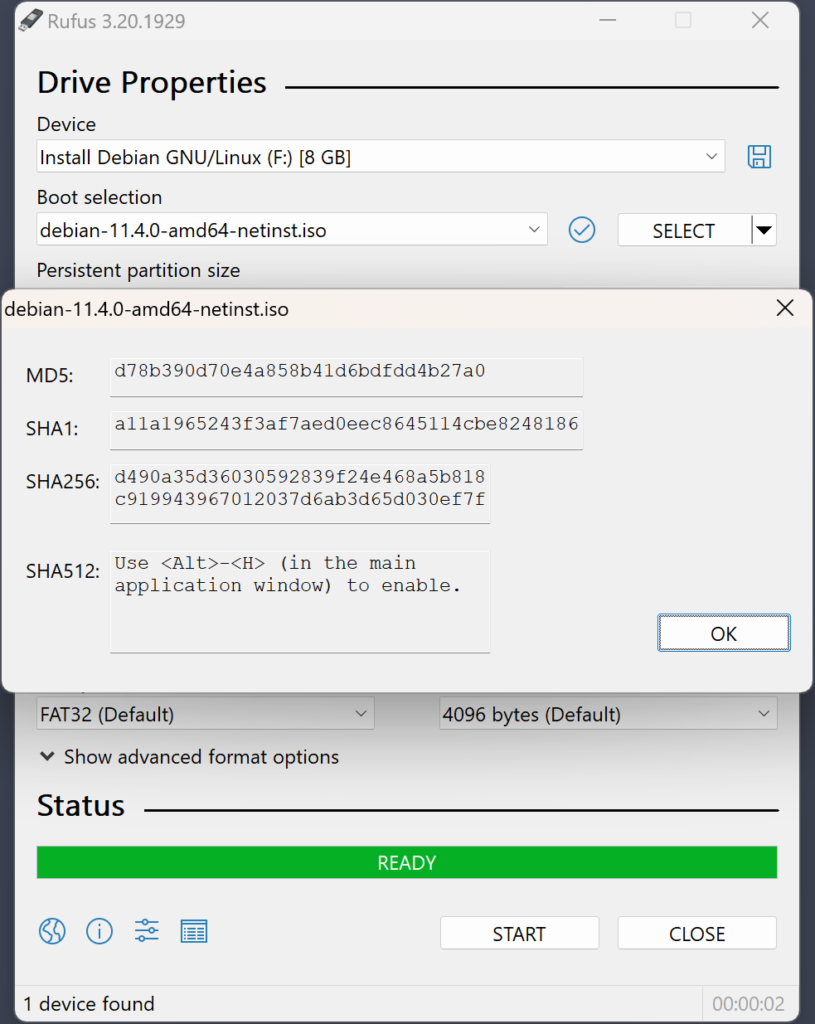
To ensure that ISO files have not been corrupted or tampered with, Rufus can compute and display hash values (MD5, SHA-1, SHA-256, and SHA-512) for any ISO image loaded into the application. This allows users to verify the integrity of their downloaded ISO files against official checksums provided by OS vendors, offering a layer of security assurance before any data is written to a USB drive.
Extended Windows 11 Installation Support
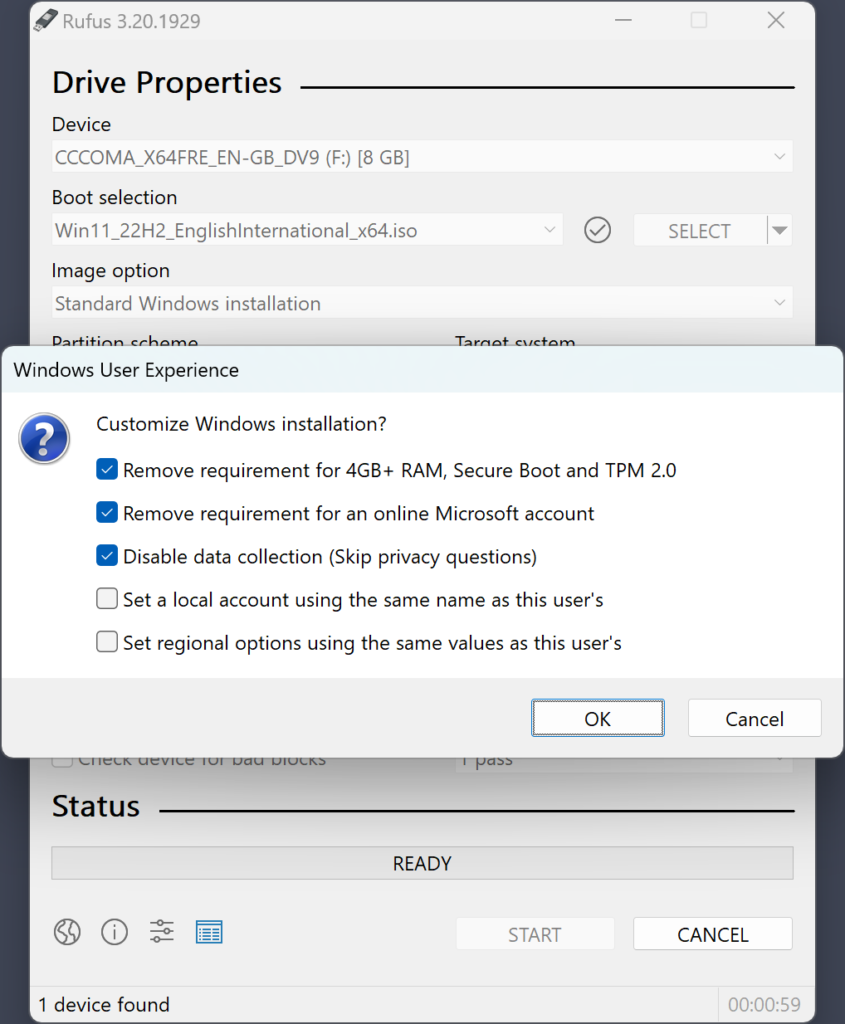
Rufus includes special options for users who want to install Windows 11 on hardware that does not officially meet Microsoft’s requirements — such as machines lacking a TPM 2.0 chip or Secure Boot support. When a Windows 11 ISO is selected, Rufus presents options to bypass TPM, Secure Boot, and RAM requirements, as well as options to skip the mandatory Microsoft account requirement during setup and to apply local account configurations directly. These extended options make Rufus a valuable tool for system administrators dealing with legacy hardware.
User Interface and Ease of Use
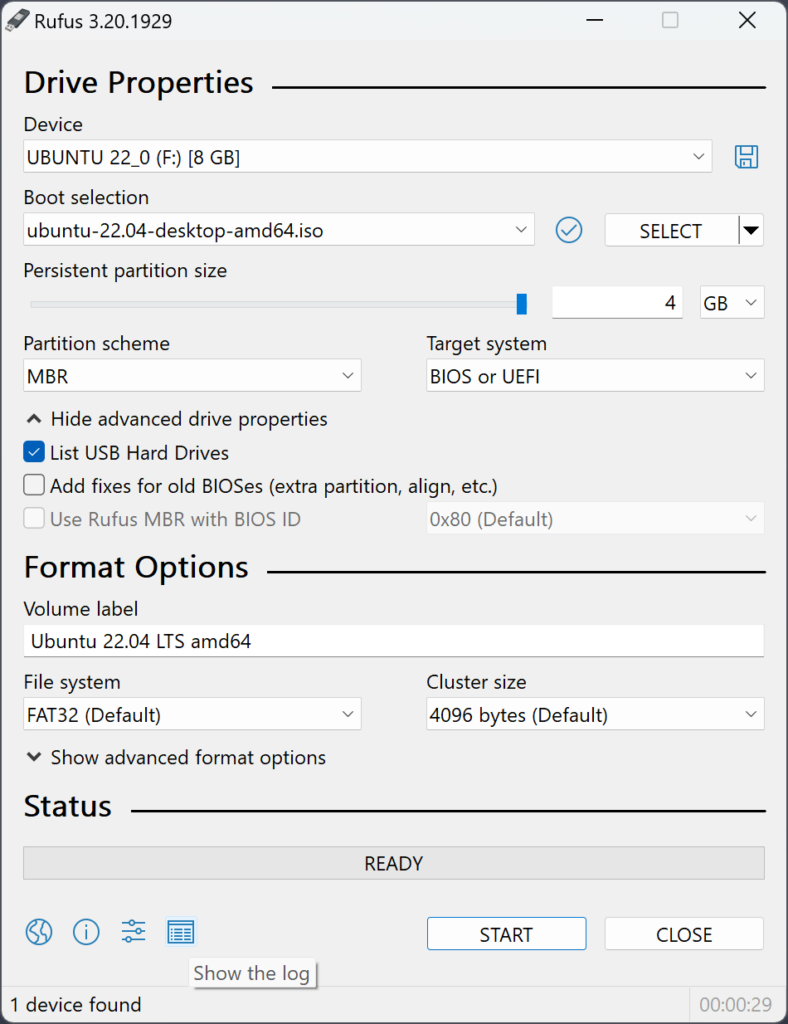
Rufus features a clean, single-window graphical interface that presents all its options in a logical, sequential layout. From top to bottom, the interface walks the user through device selection, boot selection, image option, partition scheme, target system, volume label, file system, and cluster size — followed by a prominent Start button at the bottom. This linear flow ensures that even first-time users can navigate the tool without confusion.
A real-time progress bar at the bottom of the window provides clear feedback during the write operation, along with status messages indicating the current stage of the process. Rufus also supports multiple interface languages, making it accessible to users around the world.
Performance and Speed
Rufus consistently outperforms competing USB creation tools in terms of write speed. In independent benchmarks, Rufus has been shown to be significantly faster than alternatives such as UNetbootin, Universal USB Installer, and even the official Windows USB/DVD Download Tool. This performance advantage is achieved through optimized write routines and efficient handling of ISO content, both of which reduce the total time needed to create a bootable USB drive.
Portability and System Requirements
Since Rufus is a portable application, it requires no installation and leaves no traces on the host system once the executable is closed. The software runs on Windows 7, Windows 8, Windows 10, and Windows 11 (both 32-bit and 64-bit architectures). It requires administrator privileges to access and write to USB devices, which is standard for disk management tools. Its tiny footprint means it can be carried alongside other utilities on a technician’s toolkit drive, ready to be run at any time.
Open Source and Community Trust
Rufus is fully open source, with its source code publicly available on GitHub under the GNU General Public License (GPL). This transparency has earned it a high degree of trust within the technology community. Independent security researchers and developers can inspect the code, audit it for vulnerabilities, and contribute improvements. The open-source nature also means that Rufus benefits from a global community of contributors who help maintain its compatibility with new hardware, new OS releases, and emerging UEFI standards.
Conclusion
Rufus has firmly established itself as an indispensable utility in the arsenal of anyone who works with USB boot media. Its combination of broad OS and ISO support, flexible partition and file system configuration, UEFI and legacy BIOS compatibility, built-in ISO downloading, hash verification, bad block detection, and Windows 11 bypass options make it far more powerful than its compact size would suggest. The fact that it is free, portable, open source, and consistently fast only adds to its appeal.
Whether you are an IT professional managing dozens of machines, a developer constantly spinning up new environments, or a home user looking to reinstall your operating system, Rufus provides a reliable, efficient, and user-friendly experience. Its continued development and active community support ensure that it keeps pace with the ever-evolving landscape of computing hardware and software, making it a tool that remains as relevant today as it was when it was first released.