What Exactly Is Ventoy?
Ventoy is a free and open-source tool designed to create bootable USB drives from ISO, WIM, IMG, VHD(x), and EFI files. It was created by a developer known as longpanda and has grown into one of the most beloved utilities in the sysadmin and tech community since its initial release in 2020.
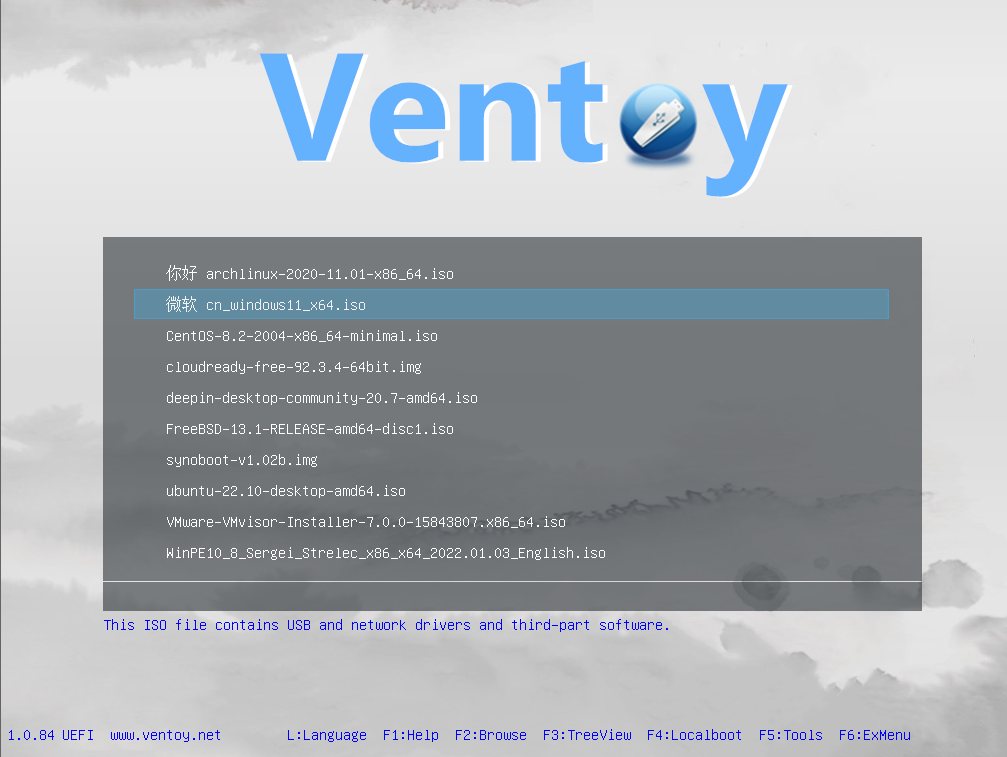
The core philosophy behind Ventoy is radical simplicity: you install Ventoy onto a USB drive once, and from that point forward, all you ever need to do is copy your image files directly onto the drive. There is no reformatting, no re-flashing, no special software required each time. The drive behaves like an ordinary storage device for file management purposes, but when you boot from it, Ventoy presents a clean, organised boot menu listing every image file it detects. You pick one, and the system boots into it.
That is genuinely all there is to it.
Introduction: The Problem With Traditional Bootable USB Creation
Anyone who has spent time managing operating systems, whether as a system administrator, IT professional, or an enthusiastic home user, knows the frustration of creating bootable USB drives. The traditional workflow is repetitive and wasteful: download an ISO file, format the USB drive, burn the image using a tool like Rufus or Etcher, and then repeat the entire process every time you need a different operating system. If you want to carry five different OS images, you need five separate USB drives, or you spend enormous amounts of time reformatting and re-flashing the same drive over and over again.
Ventoy was built to solve this problem entirely, and it does so in a way that feels almost too simple to be true. Once you experience it, going back to the old method feels like choosing to hand-wash clothes when a washing machine is sitting right next to you.
How Ventoy Works Under the Hood
Understanding how Ventoy achieves this elegance requires a brief look at what it does during the initial installation. When you run the Ventoy installer on a USB drive, it partitions the drive into two sections. The first is a small reserved partition where Ventoy stores its own bootloader and necessary system files. The second is a large data partition, formatted in exFAT by default, which is where you store all your image files.
When a computer boots from the Ventoy USB drive, the system hands control to Ventoy’s bootloader. This bootloader then scans the data partition for any supported image files, assembles a menu from everything it finds, and presents that menu to the user. When you select an image, Ventoy uses a technique to virtually mount the image and pass control to it directly, so the system boots from the image as if it were burned physically to a dedicated drive.
This approach is fundamentally different from tools like Rufus or UNetbootin, which physically extract and write OS files to the drive in a format the BIOS or UEFI can boot. Ventoy bypasses this entirely by handling the boot process itself and doing the heavy lifting transparently.
Supported File Formats and Operating Systems
One of Ventoy’s most impressive qualities is the sheer breadth of what it supports. On the file format side, it handles ISO, WIM, IMG, VHD, VHDx, and EFI files natively. This covers virtually every image format used by modern operating systems and utilities.
The range of operating systems supported is equally comprehensive. You can boot Windows installation media, including any version from Windows 7 through Windows 11, as well as WinPE environments used for recovery and diagnostics. Linux distributions of all varieties work seamlessly, from Ubuntu, Fedora, Debian, Arch Linux, and Linux Mint to more specialised distributions like Kali Linux, Tails, and Parrot OS. ChromeOS builds, various Unix systems, VMware ESXi installer images, Xen hypervisor environments, and numerous live rescue systems all function correctly with Ventoy.
For firmware compatibility, Ventoy supports x86 Legacy BIOS for older hardware, IA32 UEFI for 32-bit UEFI systems, x86_64 UEFI for modern 64-bit systems, ARM64 UEFI for ARM-based hardware, and MIPS64EL UEFI. Critically, all of these boot modes are supported in the same unified way, so you do not need different configurations for different hardware. A single Ventoy USB drive will boot correctly on an old laptop using Legacy BIOS and on a brand-new desktop using UEFI Secure Boot, without any changes required on your part.
Installation: Simpler Than You Might Expect
Getting Ventoy set up takes only a few minutes. The process begins by downloading the appropriate release for your operating system from the official Ventoy website. Packages are available for Windows and Linux, with the Linux version also serving macOS users in some configurations.
On Windows, the installation involves running a graphical application called Ventoy2Disk. You select your target USB drive from a dropdown list, verify the drive letter to avoid accidentally wiping the wrong device, and click Install. Ventoy formats the drive and sets everything up automatically. The entire process typically completes in under a minute.
On Linux, the process uses a shell script run with root privileges. The command syntax is straightforward, and the script handles everything the same way the Windows GUI does. There is also a web-based graphical interface available for Linux users who prefer not to use the terminal.
Once installation is complete, the drive appears in your file manager as a normal storage device. You then simply drag and drop whatever image files you want onto it. You can organise them into folders if you like; Ventoy will find them regardless of where they are placed within the data partition. Add a file and it appears in the boot menu next time you boot. Delete a file and it disappears from the menu. The experience is as natural as managing any other files on a flash drive.
The Boot Menu Experience
When you boot a computer from a Ventoy USB drive, you are greeted by Ventoy’s boot menu interface. The default interface is clean and functional, listing all detected image files by name and allowing you to navigate using keyboard arrow keys and confirm your selection with Enter.
The menu itself is highly customisable. Ventoy supports themes based on the GRUB2 theme framework, meaning you can apply visual themes to give the boot menu a more polished or personalised appearance. Multiple themes are available from the community, ranging from minimal dark interfaces to colourful and graphical designs.
Beyond aesthetics, the menu supports several useful boot modes. For each image, you can choose a normal boot, a wimboot mode for Windows images, a GRUB2 mode that hands the image off to GRUB2 for booting, and a Memdisk mode for older images that require the entire image to be loaded into memory. These options allow Ventoy to handle edge cases and compatibility issues gracefully, making it useful even for obscure or legacy images.
Ventoy also supports a local disk browsing feature, which allows you to boot ISO and other image files stored not on the USB drive itself but anywhere on the local machine’s hard drives or SSDs. This is particularly useful for IT professionals working in recovery scenarios or those who prefer to keep large image collections on an internal drive.
Persistent Storage and Plugin System
A feature that elevates Ventoy from a convenient tool to a genuinely powerful utility is its plugin system. Through a JSON-based configuration file called ventoy.json, you can control virtually every aspect of Ventoy’s behaviour.
Using this configuration file, you can assign persistent storage to specific Linux distributions. Persistent storage allows a live Linux session to save changes, installed packages, and user files between reboots, turning a live USB environment into something much closer to a fully installed system. For distributions like Ubuntu and Debian-based systems, Ventoy can manage persistence using either a dedicated persistence image file or a dedicated partition.
The plugin system also enables you to define auto-install scripts for unattended Windows or Linux installations, inject drivers or configuration files into boot environments, set password protection on the boot menu or specific menu entries, control which files appear in the menu and which are hidden, define custom menu aliases so files appear with friendly names instead of raw filenames, and configure injection of extra files into live environments at boot time.
This level of configurability transforms Ventoy from a simple multiboot tool into a comprehensive deployment and recovery platform suitable for enterprise environments and professional use cases.
Ventoy in Real-World Use Cases
The practical applications of Ventoy are wide-ranging. For home users, the most common use case is maintaining a personal toolkit USB drive loaded with a Windows installation image, a favourite Linux live environment, a system rescue tool like SystemRescue or Hiren’s BootCD PE, and a memory diagnostic utility like Memtest86. All of these coexist on a single drive without any conflict.
For IT professionals and system administrators, Ventoy simplifies the management of deployment media enormously. Instead of maintaining a drawer full of USB drives each dedicated to a single OS or tool, a single Ventoy drive can carry everything needed for a typical day of field work. Updating an image is as simple as deleting the old file and copying the new one.
For developers and testers, Ventoy removes friction from the process of testing software across multiple operating systems. Switching between Linux distributions, testing a WinPE environment, or booting an experimental OS build becomes a matter of seconds rather than minutes.
In educational and training contexts, Ventoy allows instructors to distribute a single USB drive configuration that students can use to access multiple different environments, simplifying lab setup considerably.
Updating Ventoy and Managing the Drive
One of the practical conveniences of Ventoy is that updating it does not require you to reformat the drive or re-copy your image files. When a new version of Ventoy is released, you run the same installer tool, select the upgrade option instead of install, and the tool updates only the reserved Ventoy partition while leaving your data partition and all its files completely untouched.
This means your collection of ISO files persists across Ventoy updates, and you can benefit from new features, bug fixes, and compatibility improvements without any disruption to your workflow.
Security and Secure Boot Compatibility
Modern systems with UEFI firmware often have Secure Boot enabled, a feature designed to prevent unsigned or untrusted bootloaders from running. This has historically been a significant obstacle for third-party bootable tools. Ventoy addresses this through Secure Boot support, achieved by enrolling a Ventoy-specific certificate through the UEFI MOK (Machine Owner Key) management system during the first boot on a Secure Boot system.
The process requires confirming the enrolment at the MOK manager prompt, which appears once on each machine where Secure Boot is active. After this one-time setup, Ventoy boots without issues on that machine even with Secure Boot enabled.
Why Ventoy Stands Out From the Competition
Several other multiboot USB tools exist, including YUMI, MultiBootUSB, and SARDU. Compared to these, Ventoy’s approach is considerably more elegant. Most competing tools require special preparation for each image, often extracting files or modifying the image in some way. Some have limited compatibility with certain distributions or file formats.
Ventoy’s direct boot-from-image approach avoids these complications entirely. Because the original image file is never modified or extracted, the boot experience is identical to booting from a dedicated USB drive prepared specifically for that image. Compatibility is maximised, and there is virtually no risk of corruption or modification introducing unexpected behaviour.
The active development of Ventoy also means the compatible image list is updated regularly. New Linux distributions, updated Windows releases, and new rescue tools are added to the compatibility database with each release, ensuring the tool remains relevant as the OS landscape evolves.
Conclusion: An Essential Tool for Anyone Who Boots From USB
Ventoy represents one of those rare utility tools that genuinely changes the way you work once you start using it. Its core idea is straightforward, its implementation is robust, and its flexibility through plugins and configuration options makes it suitable for casual users and seasoned professionals alike.
Whether you are building a personal rescue toolkit, managing OS deployments across an organisation, testing multiple Linux distributions, or simply wanting to avoid reformatting your USB drive every time you need a different boot image, Ventoy delivers a solution that is faster, simpler, and more reliable than anything that came before it. It is, without exaggeration, one of the most useful open-source utilities available today.